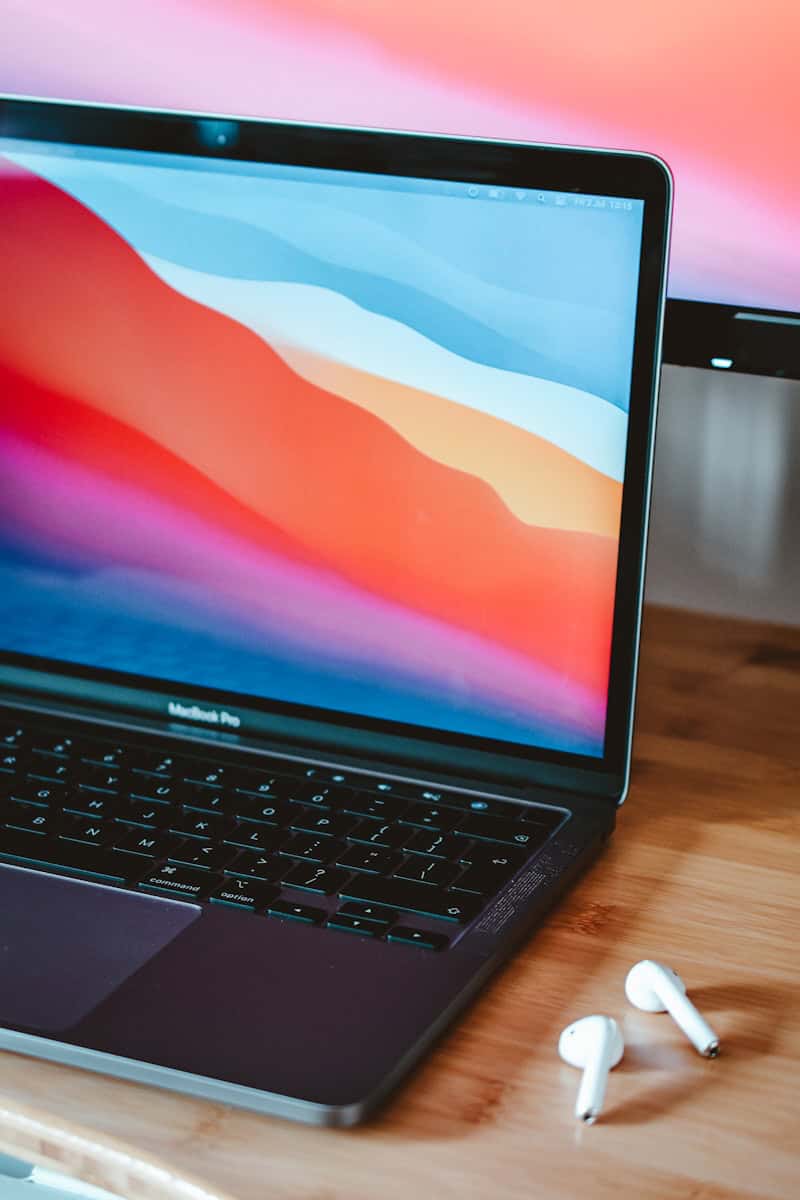
To connect your AirPods to your laptop and enjoy wireless audio, you need to use Bluetooth technology, just like you do with your iPhone or iPad. Getting this set up should be hassle-free, but it depends on your laptop’s Bluetooth capabilities. ensure your laptop’s Bluetooth is turned on and set to discoverable mode. Then, put your AirPods in their charging case and initiate the pairing mode to connect them to your laptop. Once connected, subsequent pairings will be easier, as the devices will remember each other. Whether you’re using a Windows PC or a Mac, these steps will help you enjoy your favorite music, podcasts, and videos in no time.
Your Guide to Seamless Sound
Pairing Your AirPods
Troubleshooting Connection Issues
Optimizing Your AirPods Experience
Key Takeaways
Preparing Your Laptop for Connection
Connecting your AirPods to a laptop involves a few key steps to ensure a smooth pairing process. This section will guide you through the preparation phase, detailing how to ready your laptop for a successful connection with your AirPods.
Enabling Bluetooth on Your Laptop
First, turn on theBluetoothfeature on your laptop. ForWindows 10 and 11, you may access this by clicking theBluetooth iconon the taskbar or by going toSettings>Devices>Bluetooth & Other Devices. On aMac, click theBluetooth symbolin the menu bar, or go throughSystem Preferences.
Checking AirPods Compatibility
Ensure that your laptop supportsBluetooth 4.0 or higherto be compatible with AirPods, AirPods Pro, and AirPods Max. For best performance, your laptop’s operating system should be up-to-date, whether it’sWindows,macOS, or another.
Troubleshooting Common Issues
If Bluetooth won’t turn on, restarting your laptop might help. Check if theBluetooth driveris updated in the Device Manager on aWindows PCor underSystem Preferences>Bluetoothon aMac. Sometimes you might need an externalBluetooth dongleif your laptop’s Bluetooth functionality is not adequate.
Additional Considerations Before Pairing
Close any apps that might interfere with the audio output. Also, ensure that no otherBluetooth devicesare connected that could compete with the AirPods connection.
Placing AirPods in Pairing Mode
Put your AirPods in theircharging casewith the lid open. Then, hold thesetup buttonon the case until the status light flashes white, indicating that your AirPods are inpairing mode.
Understanding Bluetooth Pairing Principles
Bluetooth creates a wireless link between devices. For a successful connection, ensure that the devices are close to each other and that there is minimal interference from other electronic devices.
Locating the Bluetooth Settings on Different Operating Systems
ForWindows 10 and 11, use theAction CenterorSettings app. OnmacOS, useSystem Preferences. Both systems feature a list of available devices once Bluetooth is enabled. Select your AirPods from this list to connect.
Connecting and Using AirPods with Your Laptop
Pairing AirPods with your laptop makes it simple to enjoy audio whether you’re listening to music or on a video call. Both Windows and Mac users can easily connect their AirPods following specific steps.
Pairing AirPods to Windows Laptops
To pair AirPods with a Windows laptop, first ensure Bluetooth is active. For Windows 10 and 11, go toSettingsthenDevicesand selectBluetooth & other devices. ClickAdd Bluetooth or other deviceand chooseBluetooth. Open the AirPods case and press the pairing button until the white light flashes. Choose your AirPods from the device list to connect.
Pairing AirPods to MacBooks
AirPods connect to MacBooks with ease. OpenSystem Preferencesthen selectBluetooth. Make sure Bluetooth is on, then open your AirPods case near the MacBook and press the pairing button. Once they appear on the list, hitConnect. If you’re signed in to iCloud, AirPods will automatically pair with other Apple devices using the same account.
Managing Audio Output and Microphone Settings
Once connected, manage audio and mic settings fromSound settingson a Windows laptop or theSoundpreference pane on Mac. Here, you can choose AirPods as your input and output device, ensuring sound and voice are transmitted through your headphones.
Interacting with Your AirPods While Connected
Once the AirPods are connected, interactions like pause and play can be done directly through touch controls. For AirPods Pro and AirPods Max, noise control modes can be switched by pressing the noise control button.
Using AirPods with Non-Apple Devices
AirPods also work with non-Apple devices. To connect, open Bluetooth settings on the device and put your AirPods in pairing mode. They can pair with PCs and Android phones this way.
Maximizing AirPods Features on Your Laptop
Get the most from your AirPods by using all their features. On Mac, access features like Siri through the menu bar or the touch pad on the AirPods. For Zoom calls, make sure your AirPods are selected as the audio device for both speaker and microphone.