iOS 18.0.1 brings important fixes for iPhone users. This update addresses several bugs and security issues that affected iOS 18.Users canresolve many common problemsby installing iOS 18.0.1 through their device settings.iOS 18.0.1, while addressing critical security vulnerabilities, has unfortunately introduced a new wave of challenges for some users. From accelerated battery drain and Wi-Fi connectivity woes to Bluetooth hiccups and app instability, these issues can disrupt the seamless experience users expect from their iPhones.
Apple released this update to fix issues with password entry freezing touch screens and other glitches. It also includes two key security patches. These improvements aim to enhance the stability and security of iPhones running the latest operating system.
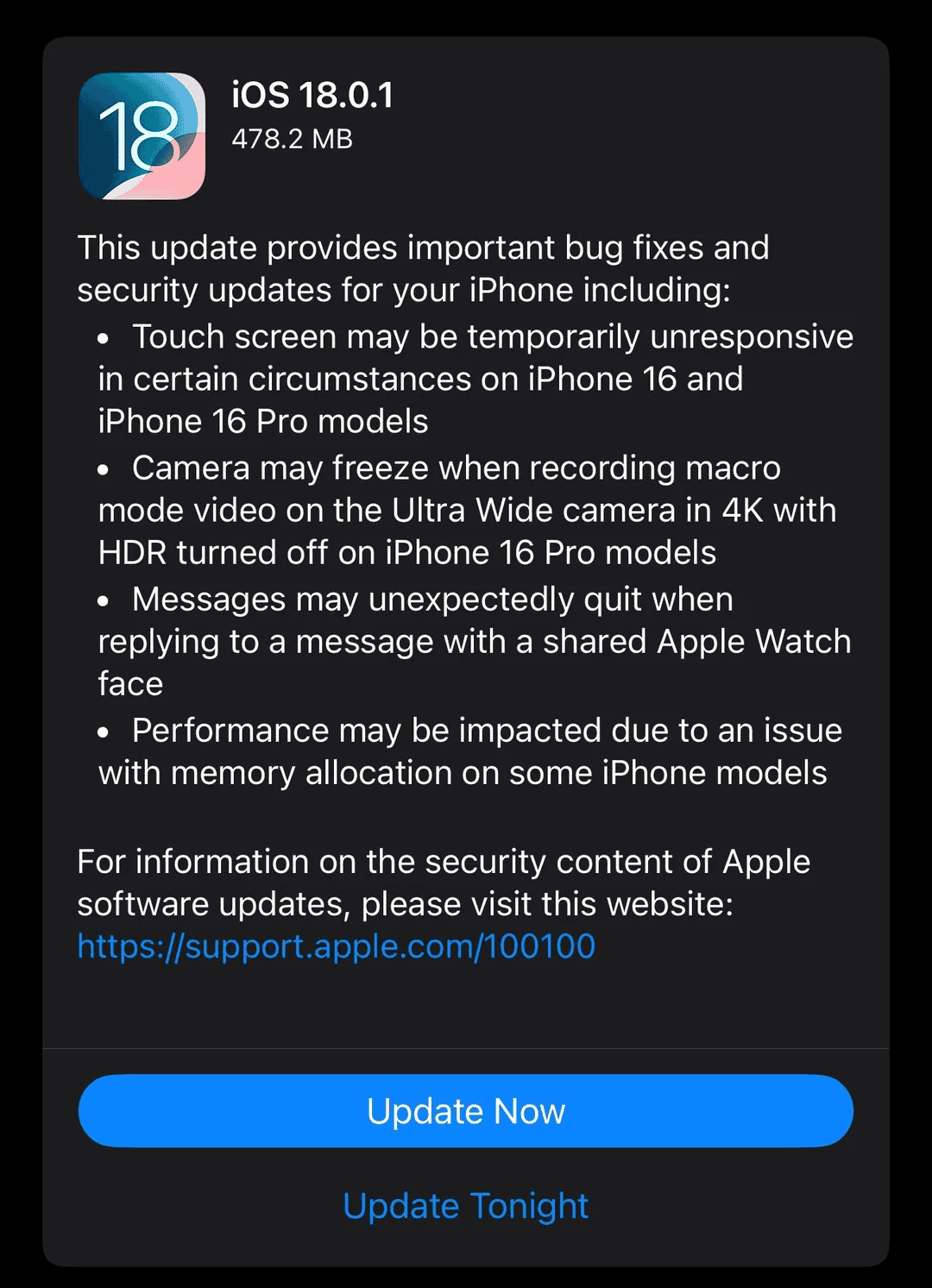
For users experiencing problems with iOS 18 the update to 18.0.1 may provide solutions. It’s a small but significant update that doesn’t add new features but focuses on fixing existing issues. Updating to iOS 18.0.1 is recommended for allcompatible iPhone models.
Latest Issues
Battery Drain: Taking a Closer Look
If your battery is draining quickly after the update, there are a few things you can check. Background App Refresh lets apps update in the background, even when you’re not using them. This can use up battery life. You can turn this off for apps that don’t need to update constantly. Go to Settings > General > Background App Refresh to change this. Location Services can also drain your battery. Some apps always want to know your location. You can turn this off for apps that don’t need it. Go to Settings > Privacy > Location Services to manage location access.
Network Problems: Beyond the Basics
Some people have had trouble with their VPN after the update. If your VPN isn’t working, try checking the settings in the VPN app. You might need to reinstall the app. Wi-Fi Assist is a feature that can sometimes use more data than you expect. It switches to cellular data when your Wi-Fi connection is weak. If you want to turn this off, go to Settings > Cellular > Wi-Fi Assist.
App Issues: More Specific Fixes
Apple Music has been a bit buggy for some people after the update. You might have problems like songs skipping or playlists not syncing. If this happens, try closing the app completely and opening it again. You could also try logging out of Apple Music and logging back in. If you’re still having problems, try deleting and redownloading the songs that are causing issues. Sometimes, third-party apps might not work perfectly with the new update. Make sure all your apps are updated to the latest version. If an app is still causing problems, you can contact the app developer for help.
Performance and Other Issues
Some people have noticed that the haptic feedback on their phone feels weaker after the update. you may check your haptic settings to make sure they’re set how you like them. Go to Settings > Sounds & Haptics > System Haptics. If you’re having trouble with Face ID, try restarting your iPhone. If that doesn’t work, you can try resetting Face ID completely. Go to Settings > Face ID & Passcode to do this.
Advanced Troubleshooting: Safe Mode and Network Reset
If you’re still having problems, you can try putting your iPhone in Safe Mode. This will temporarily turn off all third-party apps. This can help you figure out if one of your apps is causing the problem. To reset your network settings completely, go to Settings > General > Transfer or Reset iPhone > Reset > Reset Network Settings. This will erase all your saved Wi-Fi passwords, so make sure you have them handy.
More Tips from Reddit: Keyboard and 3uTools
If you’re having trouble with keyboard lag, resetting the keyboard dictionary might help. This can clear out any corrupted data that might be causing the problem. Go to Settings > General > Transfer or Reset iPhone > Reset > Reset Keyboard Dictionary. 3uTools is a helpful tool that can help you manage and fix problems with your iPhone. You can find it on their website. It has a lot of features that might come in handy if you’re having trouble with iOS 18.0.1.
About iOS 18.0.1
iOS 18.0.1 was released on August 19, 2025. It’s the first update to iOS 18, which came out a couple of weeks earlier.
Here’s what I know about it:
It’s generally recommended to keep your iPhone updated to the latest iOS version for security and performance reasons, so it’s a good idea to install this update if you haven’t already.
Troubleshooting iOS 18.0.1 Issues
While iOS 18.0.1 brought important security fixes, some users have reported encountering new problems. Don’t worry, though – many of these issues can be resolved with some simple troubleshooting steps.
Common Problems and Solutions
Here are some of the most common issues reported with iOS 18.0.1 and how to address them:
Advanced Troubleshooting
If the basic steps don’t resolve the issue, you can try these more advanced options:
Known Issues Addressed in iOS 18.0.1
This update includes bug fixes for your iPhone:
User-Reported Improvements
In addition to the specific fixes listed by Apple, users have reported improvements in the following areas:
Lingering Issues
While iOS 18.0.1 addresses some problems, a few issues are still being reported by users:
It’s worth noting that user experiences can vary, and not all issues will affect every iPhone model or user. If you’re experiencing problems with iOS 18.0.1, it’s recommended to try the troubleshooting steps mentioned earlier and to contact Apple Support for further assistance if needed.
Additional Tips from the Reddit Community
Users on Reddit have shared some helpful tips for dealing with iOS 18.0.1 issues:
Remember that these are user-reported tips and may not work for everyone. It’s always a good idea to back up your data before attempting any troubleshooting steps and to contact Apple Support for official assistance if needed.
Table: iOS 18.0.1 Troubleshooting Tips
Key Takeaways
Troubleshooting Common iOS 18.0.1 Issues
iOS 18.0.1 brings key fixes for iPhone users. This update tackles several bugs and boosts performance across devices.
Connectivity Problems and Solutions
Wi-Fi drops can happen after updates. To fix this, go to Settings > Wi-Fi. Turn off Wi-Fi then turn it back on. If that doesn’t work reset network settings. This will erase saved Wi-Fi passwords.
For cell signal issues try toggling Airplane Mode on and off. If problems persist update carrier settings. Go to Settings > General > About. If an update is ready it will show up.
Bluetooth troubles? Unpair and re-pair devices. Go to Settings > Bluetooth. Tap the “i” icon next to a device. Choose “Forget This Device” then pair again.
Performance Enhancements for iPhone 16 Series
iOS 18.0.1 fixes screen freezes on iPhone 16 models. It also stops random camera app crashes. These fixes boost daily use.
To check if your iPhone 16 has the latest update go to Settings > General > Software Update. If 18.0.1 shows up tap “Download and Install”.
For best results after updating restart your iPhone. Press and hold the side button and either volume button. Slide to power off. Wait 30 seconds then turn it back on.
Maximizing Camera and HDR Capabilities
The update improves HDR on iPhone 16 Pro models. It fixes issues with the ultra-wide lens andmacro mode.
To use macro mode get close to a subject. The camera will switch to ultra-wide lens auto. For manual control go to Settings > Camera. Turn on the Macro Control toggle.
HDR now works better in low light. To ensure it’s on go to Settings > Camera. Check that Smart HDR is enabled.
For best results keep your iPhone steady when shooting. Use the volume buttons as a shutter to reduce shake.
Overcoming App-Specific Issues
Some apps may act up after updates. First tryforce closing the app. Swipe up from the bottom of the screen and pause. Swipe the app card up to close it.
If that doesn’t help delete and reinstall the app. Tap and hold the app icon on the home screen. Tap “Remove App” then “Delete App”. Go to the App Store to download it again.
For system apps like Messages check if you have the latest version. Go to Settings > General > Software Update to make sure.
Resolving Screen and Touch Problems
iOS 18.0.1 fixesunresponsive touchscreenson iPhone 16 models. If you still have issues try a force restart.
On iPhone 16 models press and quickly release the volume up button. Do the same for volume down. Then press and hold the side button until you see the Apple logo.
If touch problems continue try resetting all settings. Go to Settings > General > Transfer or Reset iPhone > Reset > Reset All Settings. This won’t erase your data but you’ll need to re-enter Wi-Fi passwords.
For older iPhones like the XS that are sluggish after updating clear some storage space. Go to Settings > General > iPhone Storage. Delete unused apps or offload them to free up room.
Frequently Asked Questions
iOS 18.0.1 fixes some bugs but may cause new issues for users. These questions address common problems and solutions.
What steps can I follow to resolve a frozen update on iOS 18.0.1?
If your iOS 18.0.1update is stuck:
How can I troubleshoot connectivity issues after updating to iOS 18.0.1?
To fix Wi-Fi or cellular problems:
