It’s easy to keep track of your Apple devices connected to your iCloud account. You can use the Find My app, available on iOS, iPadOS, macOS, and iCloud.com, to locate each device, whether online or offline. This is important for your security and managing your Apple devices. You can locate, lock, erase, and remove devices from your account using iCloud settings and the “Find My” app. You can also use third-party tools for more advanced management.
When you sign in to iCloud, you’re able to view all devices logged into your account, play a sound to find them, or even put them in Lost Mode to secure your data. This gives you peace of mind knowing your personal information stays safe. These iCloud features are invaluable for those who often misplace devices or worry about security. Removing devices you no longer use enhances your privacy and keeps your account secure. By using these tools, you ensure that every device remains under your control.
Your iCloud Device Management Guide
Check Devices in iCloud Settings
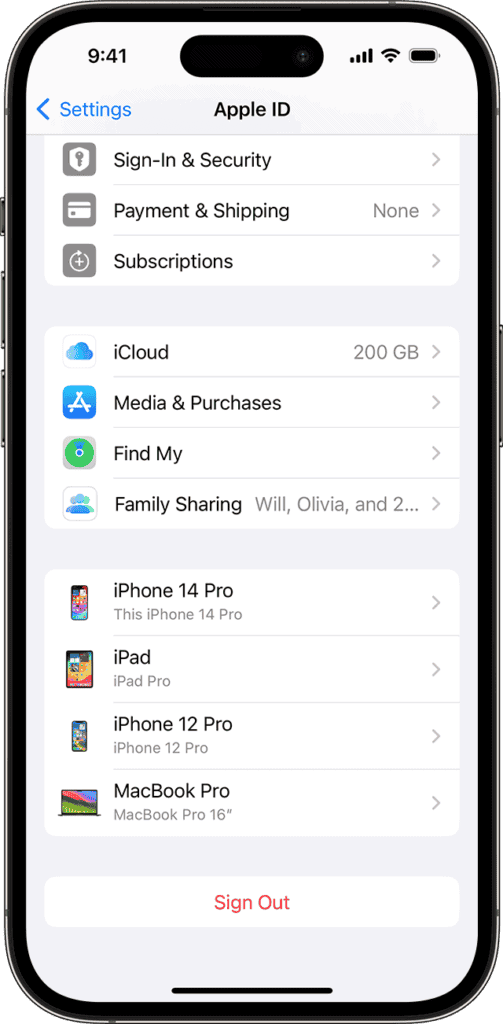
The easiest way to see your linked devices is right in your iCloud settings. This works on all Apple devices. Here’s how:
Using Apple’s “Find My” App
Apple’s “Find My” app is a powerful tool to locate lost devices, but it also helps manage your iCloud connected devices. Follow these steps:
Managing Your Devices
Once you’ve located your devices, you can manage them right from the “Find My” app or iCloud settings. Here are some actions you can take:
Third-Party Tools for Enhanced Management
While Apple’s built-in tools are great, some third-party apps offer additional features for managing your iCloud devices. Popular options include:
Key Takeaways
Managing Your iCloud Connected Devices
Managing your iCloud devices keeps your personal data safe and organized. It helps you know where your devices are and ensures that your information stays private.
Understanding iCloud and Device Management
iCloud ties all your Apple devices together with one Apple ID. This lets you access your data from any device. When managing devices, go to theSettingsapp orSystem Settingsand click your name. This shows a list of all connected devices.
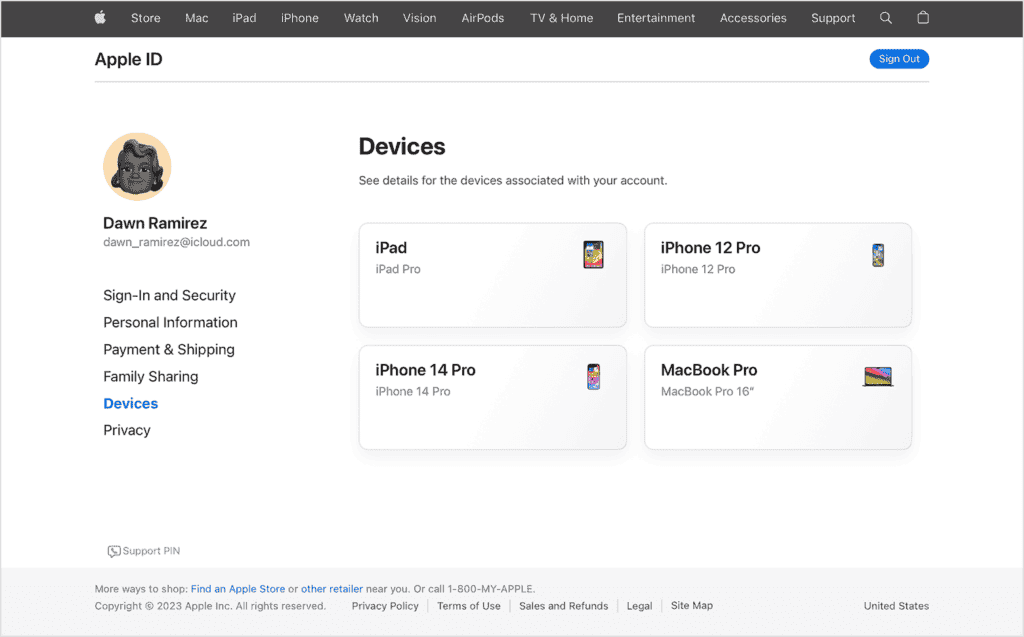
You can also see this list on theApple ID website. If you don’t recognize a device, remove it to block access to your iCloud data. Keep yourApple IDand password secure to protect your data.
Leveraging Find My Features for Device Tracking
TheFind Myapp helps locate your Apple devices when they are lost. Open the app and sign in. You can see the location of your devices on a map.
You can make your device play a sound if it is nearby but lost. If the device is not reachable, useLost Modeto lock it and display a message. Turn onSend Last Locationto get the last known location when the battery is low.
Securing Devices and Personal Data
To keep your data safe, useTwo-Factor Authenticationfor your Apple ID. This adds an extra layer of security. EnableActivation Lockto make sure only you can erase or reactivate your device.
Regularly change your Apple ID password and don’t share it. UseiCloud Keychainto store and manage your passwords securely. If you ever lose a device, you can remotely erase it to protect your information.
Optimizing Device Organization with iCloud
Using iCloud helps keep everything organized.iCloud Backupsaves your data, so you can restore it if needed. Sync yourCalendar,Contacts,Photos,Reminders, andFilesacross all devices. This makes accessing important information easy, no matter which device you use.
Organize your files withiCloud Drive, and store your photos withiCloud Photo Sharing. This ensures all your important data is in one place, and you can access it from any device.
Sharing Devices and Collaborating Via iCloud
Sharing via iCloud lets you collaborate with others. UseFamily Sharingto share purchases, subscriptions, and locations with family members.Share Their Locationhelps you keep track of family devices.
AirDropallows you to quickly share files, photos, and more with nearby Apple devices.iCloud Drivelets you work on documents with others in real-time. Sharing apps, messages, mail, and notes through iCloud enhances collaboration.
Frequently Asked Questions
Learn how to keep track of devices linked to your iCloud account, manage them, and take action if you suspect any unauthorized activity.
How can I view which devices are currently associated with my iCloud account?
To see which devices are linked to your iCloud account, open the Settings app on your iPhone or iPad. Tap on your name at the top and look for the list of devices connected to your account.
On a Mac, go to System Settings, click on your name, and scroll down to view your devices.
What steps should I take if I suspect an unauthorized Apple ID login on my iCloud?
If you think someone else accessed your iCloud account, change your Apple ID password immediately. Enable two-factor authentication if you haven’t already. Check the list of devices connected to your account and remove any you don’t recognize.
What is the procedure to sign out of my Apple ID on devices I no longer use?
To sign out of your Apple ID on a device, open the Settings app, tap your name at the top, and scroll down to find the device you want to sign out of. Tap the device and select “Remove from account.”
How can I access the history of login attempts for my Apple ID?
Currently, Apple does not provide a direct way to view the history of login attempts for your Apple ID. If you get alerts about logins from devices you don’t recognize, change your password right away and review the devices linked to your account.
How can I use Find My iPhone to locate my Apple devices?
Open the Find My app on another Apple device or go to iCloud.com. Sign in with your Apple ID. Use the map to see your device’s location. You can also play a sound on the device, mark it as lost, or erase it remotely if needed.
What is the best way to manage multiple devices connected to a single iCloud account?
Regularly review the list of devices connected to your iCloud account. Remove any devices you no longer use. Enable two-factor authentication for extra security. Keep your devices updated with the latest iOS or macOS to ensure they have the latest security features.
