Tired of spending too much time on your iPhone? You’re not alone. Many people struggle to manage their screen time effectively.Setting time limits on your iPhone can help you regain control of your digital habits and boost productivity.
Apple’sScreen Timefeature lets youset app-specific time limitson your iPhone. This tool helps you track and manage how long you use certain apps or categories of apps each day. You can easily customize these limits to fit your schedule and goals.
Using Screen Time isn’t just about restricting yourself. It’s about creating a healthier balance between your digital and real-world activities. By setting reasonable limits, you may focus more on important tasks, improve sleep quality, and reduce eye strain.
How to Set Screen Time Restrictions on Your iPhone
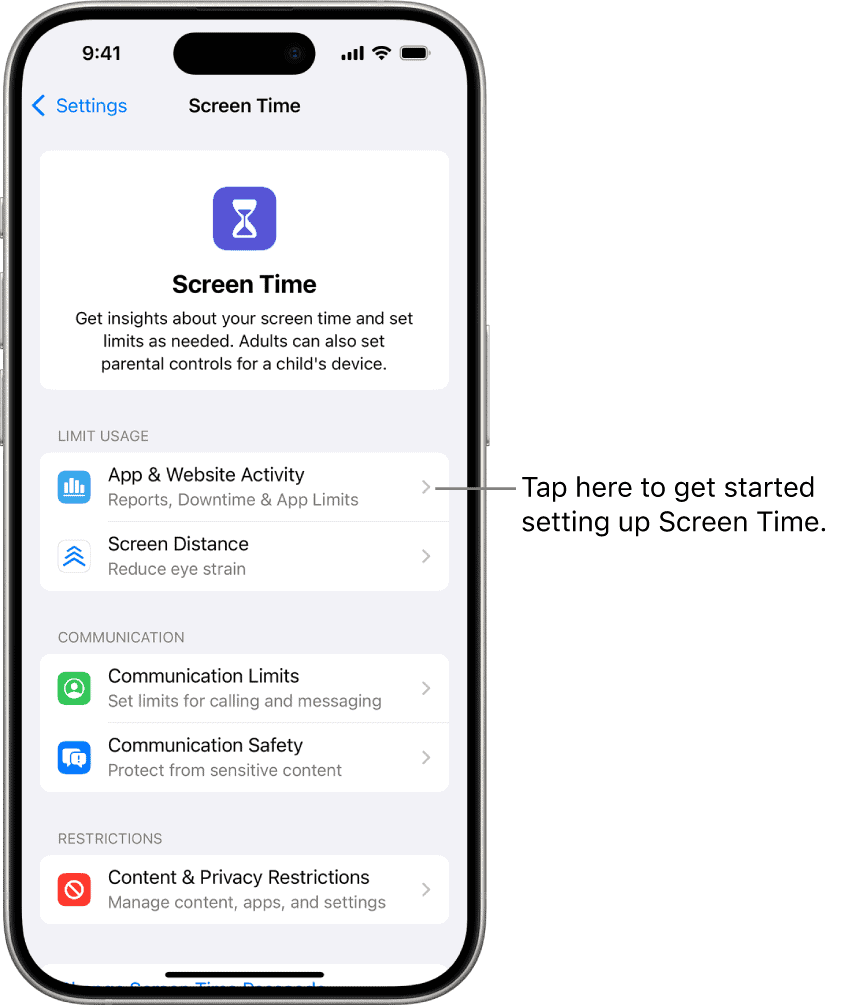
Want to manage how you or your family members use your iPhones? Screen Time is a powerful tool built into iOS that allows you to set limits on app usage, schedule downtime, and restrict certain content. Here’s a guide to help you set up Screen Time restrictions on your iPhone.
Accessing Screen Time
To get started, open the Settings app on your iPhone and tap on “Screen Time.” If you haven’t used Screen Time before, you’ll be greeted with an introduction screen. Tap “Continue” and choose whether this is your iPhone or your child’s iPhone.
Setting Downtime
Downtime lets you schedule a period when only specific apps and phone calls are allowed. This can help you wind down before bed or encourage time away from screens. To set Downtime, tap “Downtime” within Screen Time settings and toggle it on. Choose your preferred start and end times.
Setting App Limits
App Limits allow you to set daily time limits for specific apps or categories of apps (e.g., social media, games). Tap “App Limits” within Screen Time settings, then tap “Add Limit.” Select the categories or apps you want to restrict and set your desired time limit.
Setting Content & Privacy Restrictions
Content & Privacy Restrictions give you granular control over what content can be accessed on the iPhone. You can restrict explicit content, purchases, downloads, and even specific websites. Tap “Content & Privacy Restrictions” within Screen Time settings and toggle it on. Explore the various options to customize your restrictions.
Using a Screen Time Passcode
To prevent changes to Screen Time settings, you can set a passcode. This is especially useful for parents who want to ensure their children can’t bypass the restrictions. Tap “Use Screen Time Passcode” within Screen Time settings and create a four-digit passcode.
Screen Time Options on iPhone
By utilizing Screen Time effectively, you’re able to create a healthier relationship with your iPhone or help your family members manage their screen time responsibly.
Understanding Screen Time on iPhone and iPad
Screen Time is a powerful tool on iOS devices that helpsmanage device usage. It offers insights into app usage patterns and provides controls toset limitson specific apps or categories.
Key Concepts of Screen Time
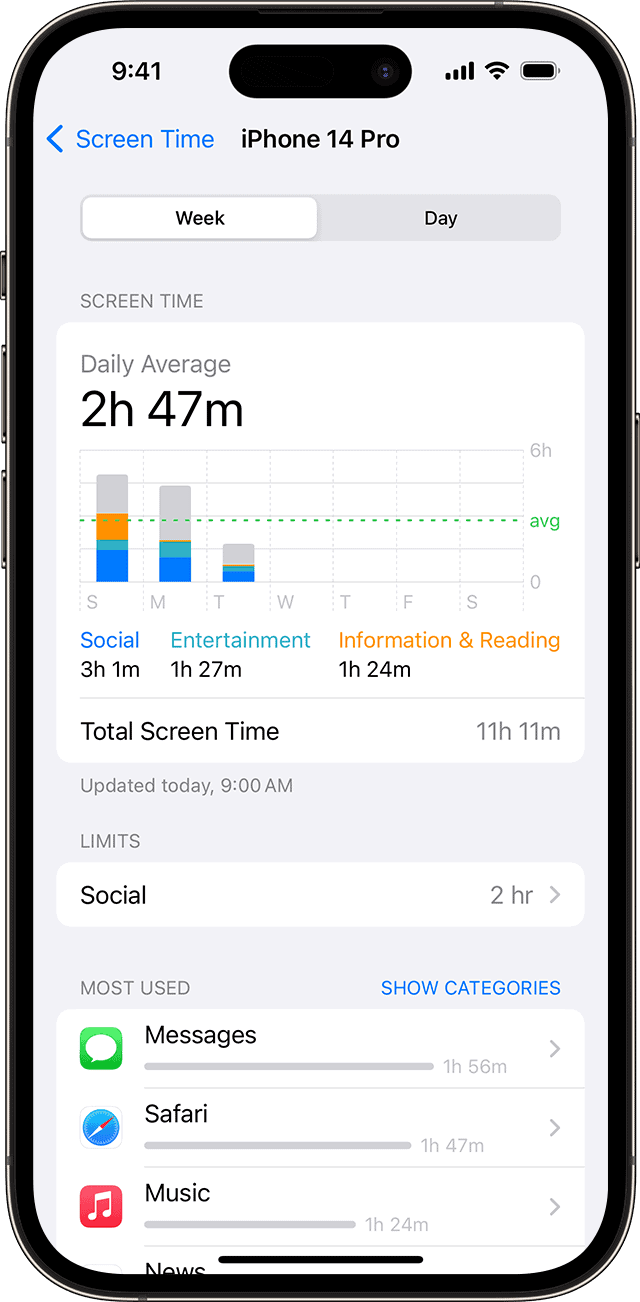
Screen Time tracks your device usage across apps and websites. It shows daily and weekly reports of your screen activity. These reports break down time spent on different app categories like social networking, productivity, and entertainment.
You can setApp Limitsfor specific apps or entire categories. This feature helps you manage time spent on certain activities. Downtime allows you to schedule periods when only approved apps are available.
Communication Limits let youcontrol who can contact youduring specific times. This is especially useful for managing children’s device usage.
Navigating the Settings App
To access Screen Time, open the Settings app on your iPhone or iPad. Tap “Screen Time” to view your usage data and adjust settings.
The main screen shows a chart of your daily device usage. Tap “See All Activity” for a detailed breakdown. Here you’ll find information on most used apps, pickups, and notifications.
App Limitscan be set by tapping “Add Limit” and selecting app categories or individual apps. You can customize time limits for each day of the week.
Remember to enable the “Share Across Devices” option to sync your Screen Time settings across all your iOS devices.
Setting Up Time Limits for Apps and Categories
iPhone’s Screen Time feature lets you set limits on app usage. You canrestrict timespent on specific apps or entire categories. This helps manage device use and promote digital wellbeing.
Establishing App Limits
Toset time limits for individual apps, open Settings and tap Screen Time. Select “See All Activity” and choose the app you want to limit. Tap “Add Limit” and set your desired time.
For popular apps like Instagram, YouTube, and TikTok, you might consider stricter limits. These platforms often lead to extended browsing sessions.
You can customize limits for weekdays and weekends. This flexibility allows for different schedules on work days versus free time.
When you reach your limit, your iPhone will notify you. you may choose to ignore the limit or end your session.
Managing Categories of Apps
Screen Time also lets youlimit entire app categories. This is useful for broader control over your device usage.
To set category limits, go to Screen Time settings and tap “App Limits”. Select “Add Limit” and choose a category.
Common categories to limit include:
You can set different time limits for each category. This allows more time for productive apps while restricting entertainment.
Category limits apply to all apps within that group. This prevents switching to similar apps when one is blocked.
Remember to review and adjust your limits regularly. Your needs may change over time, so update settings accordingly.
Advanced Features and Parental Controls
Apple’s iOS offers powerful tools to manage screen time and device usage. These features help create a balanced digital environment for children and teens.
Utilizing Downtime
Downtimeallows you to set specific periods when only approved apps are accessible. you may customize days and times for Downtime to align with your family’s schedule.
To set up Downtime:
During Downtime, a small hourglass icon appears next to restricted apps. This visual cue helps reinforce boundaries for device use.
Leveraging Communication Limits
Communication Limits let you control who can contact your child and when. This feature works across Phone, FaceTime, Messages, and iCloud contacts.
To set Communication Limits:
You can allow communication with:
This feature integrates withFamily Sharing, making it easier to manage multiple devices within your household.
Customizing Accessibility with Guided Access
Guided Access restricts your iPhone or iPad to a single app. This feature is useful for:
To enable Guided Access:
To use Guided Access:
This feature enhances focus and reduces distractions, making it a valuable tool for parents and educators.
Integration with Other Apple Devices
Apple’s ecosystem allows seamless integration of Screen Time features across devices. This enables consistent time management and parental controls for families using multiple Apple products.
Syncing with Family Sharing
Family Sharing lets youmanage Screen Time settingsfor all family members from a single device. Parents canset upand adjust time limits for their children’s devices remotely. This feature works across iPhones, iPads, and Macs linked to the same Family Sharing group.
To set up Family Sharing:
Once configured, you can view screen time reports and adjust settings for all linked devices from your own iPhone.
Screen Time Across iPhone, iPad, and Mac
Screen Time settings cansync across your personal Apple deviceswhen using the same Apple ID. This ensures consistent app limits and downtime schedules on your iPhone, iPad, and Mac.
To enable syncing:
you’re able to set different limits for specific devices if needed. This flexibility allows you to tailor productivity settings based on how you use each device.
Frequently Asked Questions
Screen Time on iPhone offers various ways to manage app usage and set limits. Users can customize settings for specific apps, configure parental controls, and use features like Downtime.
How can I disable the time limit for a specific app on my iPhone?
To disable a time limit for a specific app, go to Settings > Screen Time > App Limits. Tap the app category containing the app you want to change. Uncheck the box next to the app to remove its limit.
You can alsoadjust individual app limitsby tapping on the app and setting a new time or choosing “No Limit.”
What are the steps to set up Screen Time limits on an iPhone?
Open Settings and tap Screen Time. Select “Turn On Screen Time” if not already activated. Tap “App Limits” and choose “Add Limit.”
Pick a category or specific apps. Set your daily time allowance. Tap “Add” to apply the limit.
Can I limit the total amount of time spent on my iPhone each day?
Yes, you can set an overall daily time limit. Go to Settings > Screen Time > App Limits. Tap “Add Limit” and select “All Apps & Categories.”
Choose your desired total daily time allowance. This creates a combined limit for all iPhone usage.
How can I configure Screen Time on an iPhone for parental control?
To set up parental controls, go to Settings > Screen Time. Tap “Turn On Screen Time” for your child’s device. Choose “This is My Child’s iPhone.”
Follow the prompts to set updowntime, app limits, and content restrictions. Create aScreen Time passcodeto prevent changes.
Is it possible to bypass the time limit on an iPhone without the passcode?
Without the Screen Time passcode, bypassing time limits isn’t possible. This security measure ensuresparental controls remain effective.
If you’ve forgotten the passcode, you’ll need to reset your iPhone to factory settings to remove Screen Time restrictions.
What is the function of Downtime in the iPhone’s Screen Time settings?
Downtime schedules a daily period when only apps you choose and phone calls are allowed. It helps reduce screen time during specific hours, like bedtime.
During Downtime, app icons appear dimmed and display a small hourglass icon. you’re able to customize allowed apps in Screen Time settings.
